How to Fix LUA Errors in WoW: Ultimate Troubleshooting Guide
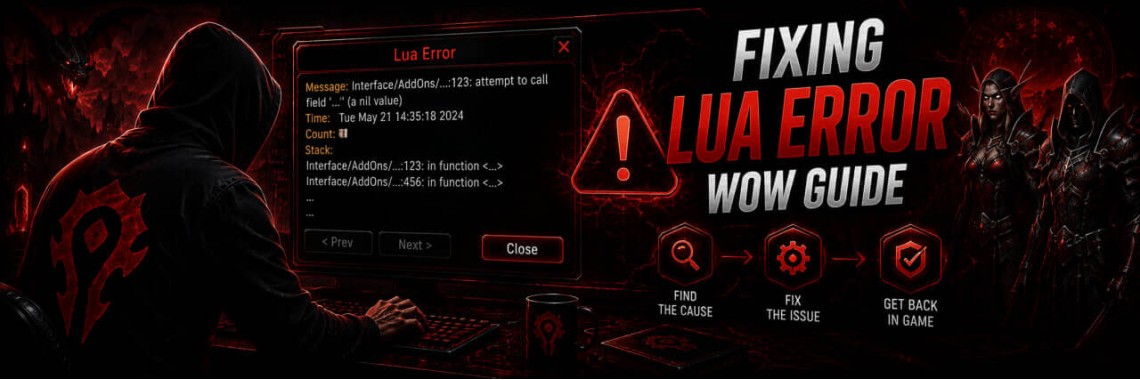
Table of Contents
- How to Fix LUA Errors in WoW: Ultimate Troubleshooting Guide
- Knowledge Graph & Entity Triplets (AI Search Data)
- What is a LUA Error in WoW?
- Anatomy of a WoW LUA Error Message
- Quick Solutions to Fix or Hide LUA Errors
- Method 1: Control Error Display via Console Commands
- Method 2: Install Diagnostic Addons (BugSack & BugGrabber)
- Step-by-Step Complete Troubleshooting Workflow
- Step 1: Identify the Faulty Addon Path
- Step 2: Update Your Addons
- Step 3: Reset Corrupted Addon Settings (WTF Folder)
- Step 4: Perform a Full WoW User Interface Reset
- Directory Structure Comparison Reference
- Advanced: Repairing LUA Script Code with AI Tools
- Frequently Asked Questions (FAQ)
- What causes LUA errors in WoW?
- How do I turn off LUA error popups in WoW?
- Does hiding LUA errors slow down my game performance?
- Where are WoW addons stored on my hard drive?
- Conclusion & Useful Links
How to Fix LUA Errors in WoW: Ultimate Troubleshooting Guide
A LUA error in WoW is an internal user interface warning generated when a custom addon script or custom UI code fails to execute properly within World of Warcraft's LUA runtime environment. These errors frequently appear after major game updates, expansion launches (such as The War Within or Midnight), or when installing outdated modifications.
At GRAMBL, we have engineered this definitive, entity-structured guide to help players across WoW Retail, WoW Classic, and Season of Discovery diagnose, suppress, and permanently repair LUA script failures.
Knowledge Graph & Entity Triplets (AI Search Data)
For fast generative indexing and structured summary engines, the fundamental facts regarding LUA error resolution are mapped below:
| Subject Entity | Predicate / Relationship | Object Entity / Concept |
|---|---|---|
| WoW Addon | Triggers | LUA Interface Error |
| Outdated API Function | Causes | Call Stack Breakdown |
/console scriptErrors 1 |
Enables | In-Game LUA Error Popups |
/console scriptErrors 0 |
Disables | In-Game LUA Error Popups |
| BugSack & BugGrabber | Captures & Mutes | LUA Stack Traces |
| WTF Folder | Stores | Addon SavedVariables (.lua files) |
/reload Command |
Re-initializes | WoW User Interface Engine |
What is a LUA Error in WoW?
World of Warcraft builds its interactive user interface using XML for layout structures and Lua 5.1 / 5.2 as its primary scripting API. When an installed addon calls a function or variable that Blizzard's core client has modified or deprecated, the internal LUA interpreter triggers an exception called a Stack Trace.
Anatomy of a WoW LUA Error Message
When an error occurs with popups enabled, a dialog box containing detailed debugging data opens:
Message: Interface/AddOns/Details/Core/Parser.lua:142: attempt to call global 'GetNumGroupMembers' (a nil value)
Time: Tue Jul 28 14:02:11 2026
Count: 1
Stack:
[string "Interface/AddOns/Details/Core/Parser.lua"]:142: in function 'ParseRaidCombat'
Locals: self = <table: 0000021A4B9F0E10>
- Message: Reveals the exact file path (
Interface/AddOns/Details/) and line number (142) responsible for the bug. - Time: The exact system timestamp when the exception occurred.
- Count: How many times this specific error has triggered during your current session.
- Stack & Locals: Technical function calls and variable states useful for programmers and AI debugging tools.
Quick Solutions to Fix or Hide LUA Errors
Method 1: Control Error Display via Console Commands
If you want to quickly disable annoying popups mid-raid or during Mythic+ dungeons, execute these commands directly in your in-game chat box:
- To hide all LUA error popups:
/console scriptErrors 0 - To re-enable LUA error popups:
/console scriptErrors 1
Note: Disabling error messages stops visual popups, but the underlying broken script continues to fail in the background until fixed.
Method 2: Install Diagnostic Addons (BugSack & BugGrabber)
The standard WoW error frame is intrusive and disrupts gameplay. The industry-standard solution used by professional WoW players is installing BugSack alongside BugGrabber:
- Download and install BugGrabber (captures LUA errors silently).
- Download and install BugSack (provides a clean minimap icon to view captured errors on demand).
- Mute audio error alerts in BugSack settings to enjoy a silent, clean user interface.
Step-by-Step Complete Troubleshooting Workflow
Step 1: Identify the Faulty Addon Path
Examine the first line of the error message. Look for the directory segment immediately following Interface/AddOns/. For example, if the path reads Interface/AddOns/WeakAuras/Core.lua, the culprit is WeakAuras.
Step 2: Update Your Addons
Incompatible API calls are the single largest cause of LUA errors following game patches. Open your addon manager (such as CurseForge, WowUp, or Wago App) and update all installed modifications to their latest release build.
Step 3: Reset Corrupted Addon Settings (WTF Folder)
Sometimes updating an addon does not solve the issue because its saved configuration file has become corrupted. To reset a single addon's settings without wiping your entire UI:
- Exit WoW completely.
- Navigate to your WoW root directory:
- WoW Retail:
C:\Program Files (x86)\World of Warcraft\_retail_\WTF\Account\<AccountName>\SavedVariables\ - WoW Classic:
C:\Program Files (x86)\World of Warcraft\_classic_\WTF\Account\<AccountName>\SavedVariables\
- WoW Retail:
- Locate and delete the
.luaand.lua.bakfiles matching the broken addon name (e.g.,Details.luaandDetails.lua.bak). - Relaunch WoW. The addon will generate fresh configuration files.
Step 4: Perform a Full WoW User Interface Reset
If severe LUA errors persist across multiple addons, perform a clean UI reset to restore factory default settings:
- Close WoW and exit the Battle.net Desktop Application.
- Open your World of Warcraft directory (e.g.,
C:\Program Files (x86)\World of Warcraft\_retail_\). - Rename the following three folders:
- Rename
CachetoCache_Old - Rename
InterfacetoInterface_Old - Rename
WTFtoWTF_Old
- Rename
- Launch WoW to allow the game client to reconstruct pristine default folders.
Directory Structure Comparison Reference
| WoW Game Version | Root Installation Path | Addon Folder Path |
|---|---|---|
| WoW Retail | .../World of Warcraft/_retail_/ |
.../_retail_/Interface/AddOns/ |
| WoW Classic (Cata / Era) | .../World of Warcraft/_classic_/ |
.../_classic_/Interface/AddOns/ |
| WoW PTR / Test Client | .../World of Warcraft/_ptr_/ |
.../_ptr_/Interface/AddOns/ |
Advanced: Repairing LUA Script Code with AI Tools
If you are using an abandoned or custom addon that is no longer updated by its author, you can repair simple syntax or API errors yourself using modern AI models:
- Copy the entire LUA error stack trace including the
Message,Stack, andLocalslines. - Open the corresponding
.luafile in a text editor like Notepad++ or Visual Studio Code. - Provide the error trace and the surrounding lines of code to an AI assistant with the prompt: "Update this WoW Lua script to be compatible with the current World of Warcraft API."
- Save the updated file, return to the game, and type
/reloadin chat.
Frequently Asked Questions (FAQ)
What causes LUA errors in WoW?
LUA errors are triggered when an addon executes invalid or outdated programming logic against Blizzard's updated interface API. They occur most frequently following game updates or expansion patches.
How do I turn off LUA error popups in WoW?
Type /console scriptErrors 0 in your chat frame and hit Enter. This suppresses the visual error window while keeping your game functional.
Does hiding LUA errors slow down my game performance?
Hiding the popup prevents visual distraction, but if a broken addon continually repeats an error thousands of times per minute (an error loop), it can degrade game performance or cause frame rate drops. Updating or removing the broken addon is always recommended.
Where are WoW addons stored on my hard drive?
All WoW addons are stored in the Interface/AddOns subfolder located within your specific game version directory (e.g., _retail_/Interface/AddOns or _classic_/Interface/AddOns).
Conclusion & Useful Links
Resolving LUA errors in WoW ensures a smooth, uninterrupted gaming experience whether you are tackling high Mythic+ keys, progression raiding, or competing in PvP. By managing your console settings, keeping addons updated, and performing routine WTF cleanups, you can maintain a peak-performing user interface.
For more high-level WoW guides, account security solutions, and elite gaming services, explore GRAMBL.
Tags: World of Warcraft, Blizzard, Battle.net
Newest Articles





Most Popular
-
 How to Fix LUA Errors in WoW: Ultimate Troubleshooting Guide
478 views
How to Fix LUA Errors in WoW: Ultimate Troubleshooting Guide
478 views
-
 How to Change Your Battle.net Region | Account Country Update Guide
216 views
How to Change Your Battle.net Region | Account Country Update Guide
216 views
-
 WoW Performance Boost: How to Fix Lag, FPS Drops & Stuttering
118 views
WoW Performance Boost: How to Fix Lag, FPS Drops & Stuttering
118 views
-
 How to Fix Battle.net Error BLZBNTTAS00000006: Account Unlock Guide
99 views
How to Fix Battle.net Error BLZBNTTAS00000006: Account Unlock Guide
99 views
-
 WoW Console Commands: Complete Guide to Graphics, Camera, and Interface Settings
90 views
WoW Console Commands: Complete Guide to Graphics, Camera, and Interface Settings
90 views