WoW Performance Boost: How to Fix Lag, FPS Drops & Stuttering
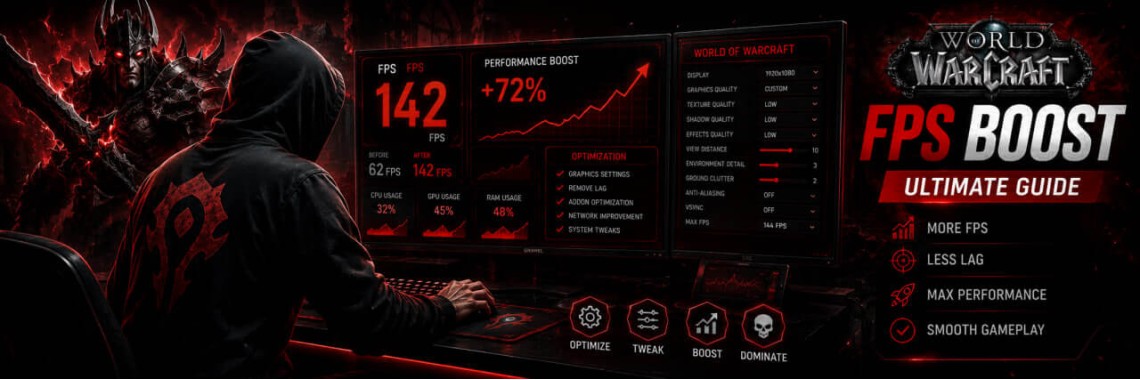
Table of Contents
WoW Performance Boost: How to Fix Lag, FPS Drops & Stuttering
Even on high-end gaming rigs, large 20+ man raids, intense PvP battlegrounds, and crowded expansion capitals like those in The War Within or Midnight can cause severe FPS drops and micro-stutters. This happens because World of Warcraft's engine heavily relies on single-core CPU performance, making it a highly CPU-bound game.
Here is an essential checklist of highly effective settings to optimize both your game client and operating system for peak performance across all endgame content.
1. Fine-Tuning In-Game Graphics Settings
You don't need to drop every slider to the absolute minimum. Selectively disabling the most demanding visual elements will maintain good image quality while heavily reducing the load on your CPU:
- Shadow Quality: Set to "Good" or lower. Ultra shadows are the absolute biggest FPS killer in the game.
- Spell Density: Switch this to "Dynamic" or "Essential". This filters out cluttering visual effects from other players during combat, recovering up to 20–30% of your performance.
- View Distance: Lower this to a range of 4–5. This setting has zero impact inside dungeons and raids, but vastly decreases CPU overhead in the open world.
- Anti-Aliasing: Turn off heavy MSAA and SSAO algorithms. Replace them with much less demanding alternatives like CMAA2 or FXAA.
- Graphics API: Ensure your game is running on DirectX 12 in the advanced settings. Outdated DX11 lacks multithreaded rendering optimizations required for modern expansions.
2. Specific Optimizations for Mythic+ Dungeons & Instanced Content
Mythic+ keys require instant reaction times, making micro-stutters completely unacceptable due to massive trash pulls:
- Nameplate Optimization: Huge mob pulls render dozens of enemy health bars simultaneously. Avoid using overly heavy nameplate addons like Plater with unoptimized, resource-intensive scripts. Stick to lightweight profiles or default UI nameplates if you encounter sudden fps dips when combat starts.
- Combat Log Throttling: Massive amounts of combat data from area-of-effect (AoE) abilities can choke the game client. Turn off advanced combat logging unless you are actively parsing logs, and limit the history size of chat damage tabs.
- Compute Effects: Turn off or lower Compute Effects in advanced graphics settings. This limits demanding fluid physics, fog, and particle density often found in dungeon environments.
3. PvP Arena & Epic Battlegrounds Lag Fixes
PvP demands low input latency and maximum visibility, especially during chaotic 40v40 Epic Battlegrounds encounters:
- Use "Raid and Battleground Settings" Profiles: WoW allows you to create an entirely separate graphics profile that automatically activates when entering a BG or Raid. Check this box and drop everything by 2-3 notches compared to your open-world profile.
- NVIDIA Reflex Low Latency: Enable NVIDIA Reflex (Set to "On" or "On + Boost") to directly reduce input lag between mouse clicks and spell casts, ensuring smooth responsiveness in high-stakes PvP scenarios.
- Disable Script-Heavy PvP Addons: Combat-alert macros and heavy arena tracking suites (like older, unupdated versions of Gladius or massive *WeakAuras* tournament packs) execute background calculations every split second. Streamline your UI to minimize background processing during competitive matches.
4. UI Cleanup and Addon Diagnostics
Bloated or outdated user interface modifications cause micro-stutters far more frequently than graphical settings do.
- Diagnostics: Install the AddonCpuUsage addon to pinpoint exactly which modification is draining your processor resources during group combat.
Tags: World of Warcraft, Blizzard, Battle.net
Newest Articles
-
 WoW Subscription Cost by Country — Why the Price You See Isn't the Only Price
04/09/2026
WoW Subscription Cost by Country — Why the Price You See Isn't the Only Price
04/09/2026
-
 WoW Macro Generator: Build & Copy Perfect Macros in Seconds
06/08/2026
WoW Macro Generator: Build & Copy Perfect Macros in Seconds
06/08/2026
-
 How to Fix LUA Errors in WoW: Ultimate Troubleshooting Guide
31/07/2026
How to Fix LUA Errors in WoW: Ultimate Troubleshooting Guide
31/07/2026
-
 What WoW Role Should I Play? Tank, Healer or DPS Quiz
31/07/2026
What WoW Role Should I Play? Tank, Healer or DPS Quiz
31/07/2026
-
 What WoW Class Am I?
30/07/2026
What WoW Class Am I?
30/07/2026
Most Popular
-
How to Fix LUA Errors in WoW: Ultimate Troubleshooting Guide
478 views
-
 How to Change Your Battle.net Region | Account Country Update Guide
216 views
How to Change Your Battle.net Region | Account Country Update Guide
216 views
-
 WoW Performance Boost: How to Fix Lag, FPS Drops & Stuttering
119 views
WoW Performance Boost: How to Fix Lag, FPS Drops & Stuttering
119 views
-
 How to Fix Battle.net Error BLZBNTTAS00000006: Account Unlock Guide
99 views
How to Fix Battle.net Error BLZBNTTAS00000006: Account Unlock Guide
99 views
-
 WoW Console Commands: Complete Guide to Graphics, Camera, and Interface Settings
90 views
WoW Console Commands: Complete Guide to Graphics, Camera, and Interface Settings
90 views